> ## Documentation Index
> Fetch the complete documentation index at: https://docs.agentset.ai/llms.txt
> Use this file to discover all available pages before exploring further.
# Introduction
> Use webhooks to get real-time notifications on events happening across your Agentset organization.
Webhooks allow you to listen to real-time events happening across your Agentset organization. With webhooks, you can build custom integrations such as:
* Getting notified when a document finishes processing and is ready for search
* Monitoring ingest job progress and handling errors automatically
* Triggering downstream workflows when documents are added or removed
* Building dashboards that reflect real-time document processing status
In this guide, you'll learn how to configure webhooks for your Agentset organization and see the list of available events.
## Creating a webhook
To create a webhook for your Agentset organization, follow these steps:
Go to the **Webhooks** settings page in your Agentset dashboard.
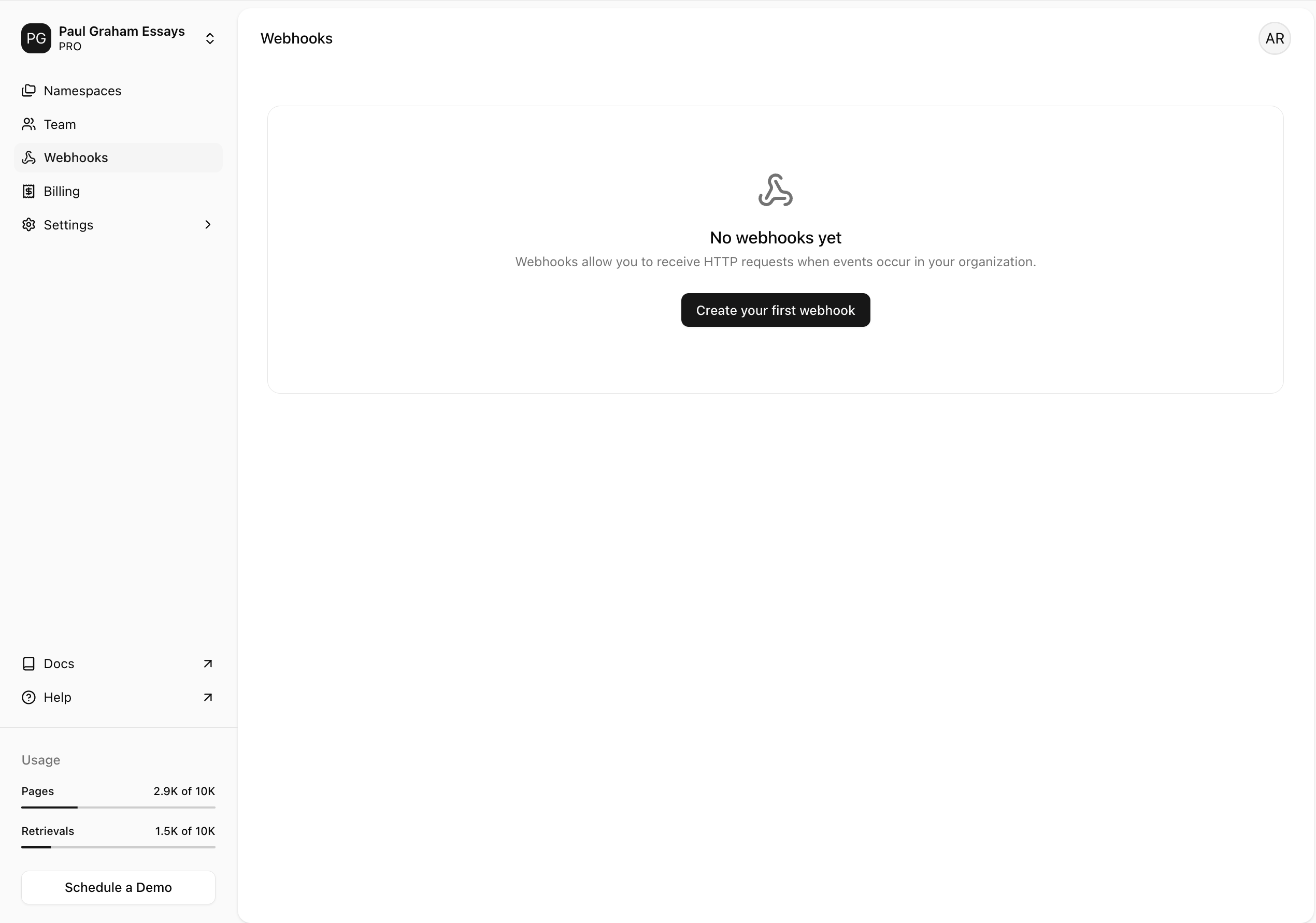 Click on **Create Webhook** to create a new webhook.
Fill in the required fields in the webhook creation form:
Click on **Create Webhook** to create a new webhook.
Fill in the required fields in the webhook creation form:
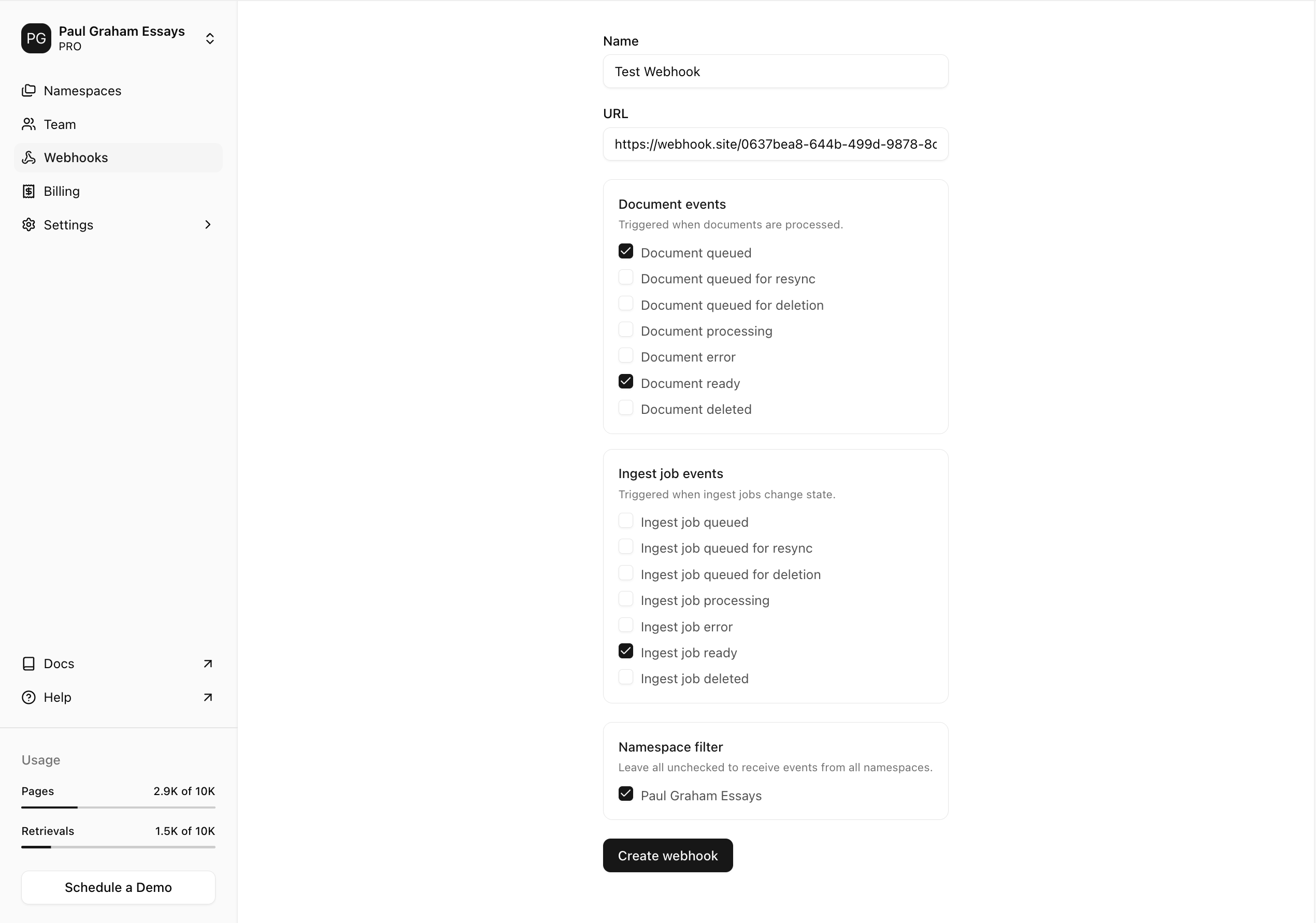 1. **Name**: Give your webhook a name that helps you identify it.
2. **URL**: Enter the URL of the endpoint where you want to receive webhook events. We recommend using [webhook.site](https://webhook.site/) for testing.
3. **Events**: Select the events you want to listen to. You can select multiple events. See the [Event Types](/webhooks/event-types) section for the full list.
4. **Namespaces** (optional): Select specific namespaces to receive events from. If no namespaces are selected, the webhook receives events from all namespaces in your organization.
Click **Create webhook** to save.
## Viewing webhook event logs
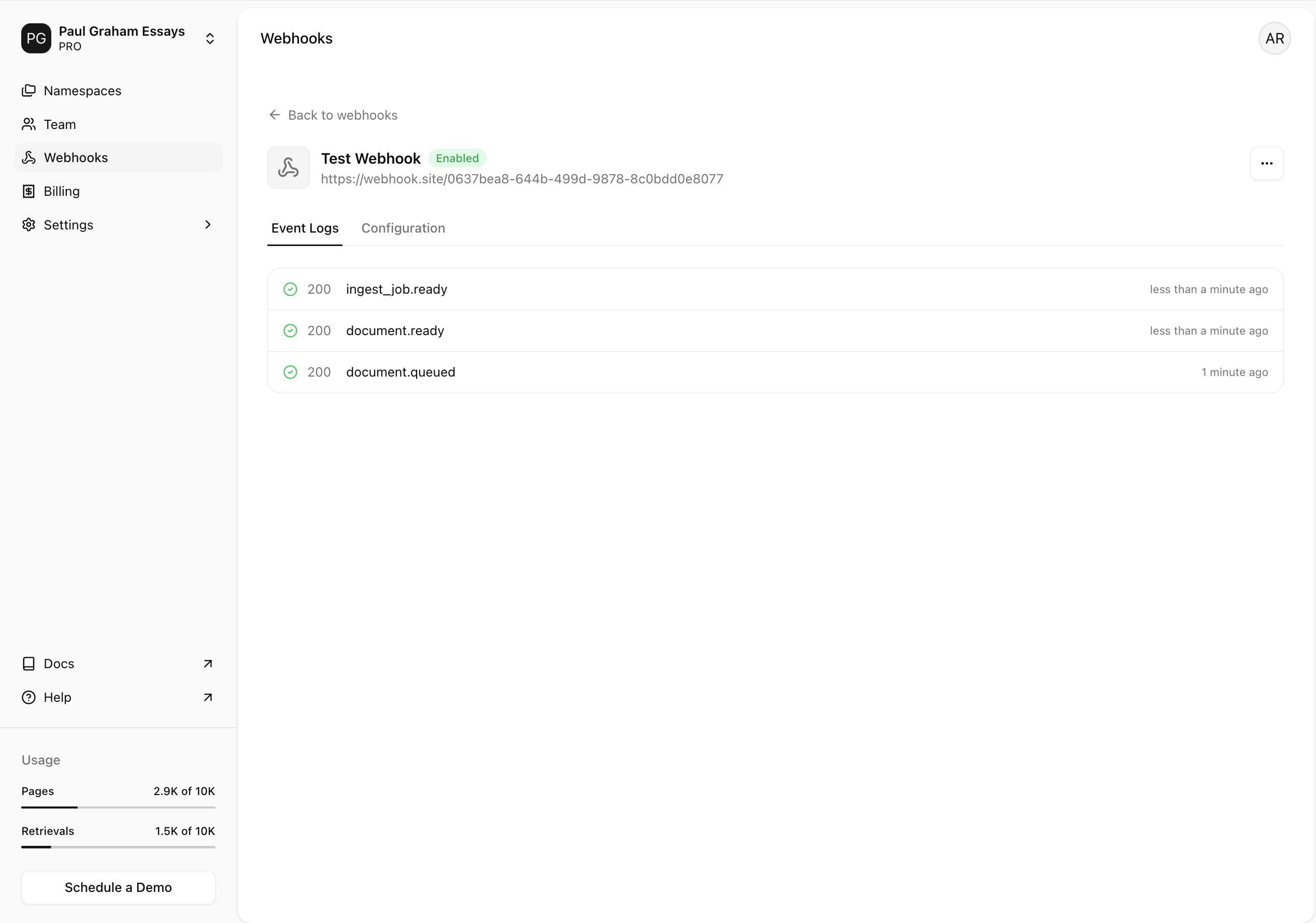
Agentset provides a webhook event logs page where you can view all webhook events sent to your endpoint in real-time.
To view the webhook event logs, select the webhook from the **Webhooks** settings page and click on the **Webhook Logs** tab.
Here, you'll see a list of all the webhook events sent to your endpoint:
1. **Name**: Give your webhook a name that helps you identify it.
2. **URL**: Enter the URL of the endpoint where you want to receive webhook events. We recommend using [webhook.site](https://webhook.site/) for testing.
3. **Events**: Select the events you want to listen to. You can select multiple events. See the [Event Types](/webhooks/event-types) section for the full list.
4. **Namespaces** (optional): Select specific namespaces to receive events from. If no namespaces are selected, the webhook receives events from all namespaces in your organization.
Click **Create webhook** to save.
## Viewing webhook event logs
Agentset provides a webhook event logs page where you can view all webhook events sent to your endpoint in real-time.
To view the webhook event logs, select the webhook from the **Webhooks** settings page and click on the **Webhook Logs** tab.
Here, you'll see a list of all the webhook events sent to your endpoint:
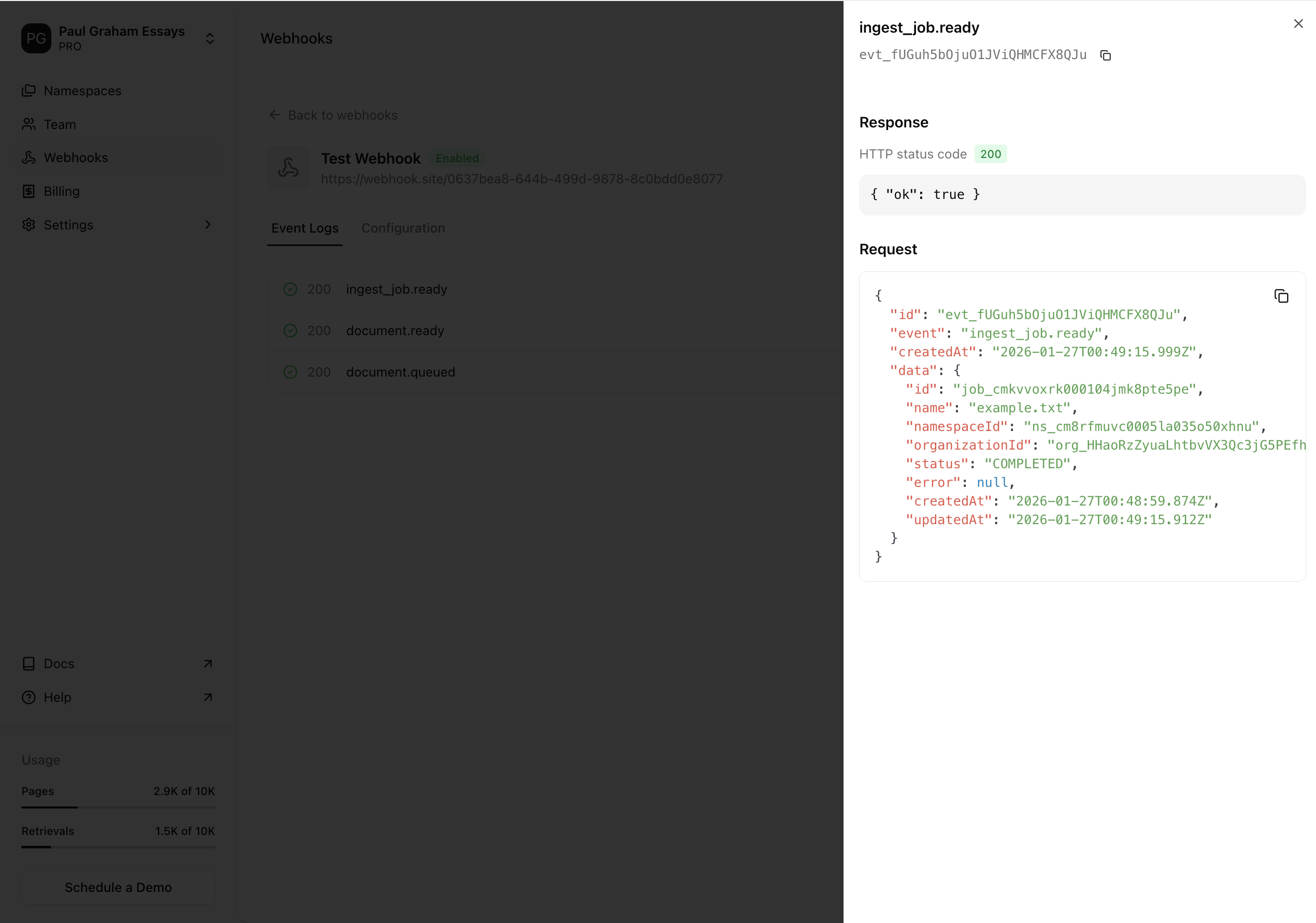
 You can select a specific event to open a panel with more details:
 ## Sending test events
You can send test events to your webhook URL to verify it's working correctly.
Navigate to the **Webhooks** settings page and select the webhook you want to test.
Click on the **Update Details** tab to open the webhook details page.
Select the `⋮` icon on the top right of the page, and click on **Send test event**.
## Sending test events
You can send test events to your webhook URL to verify it's working correctly.
Navigate to the **Webhooks** settings page and select the webhook you want to test.
Click on the **Update Details** tab to open the webhook details page.
Select the `⋮` icon on the top right of the page, and click on **Send test event**.
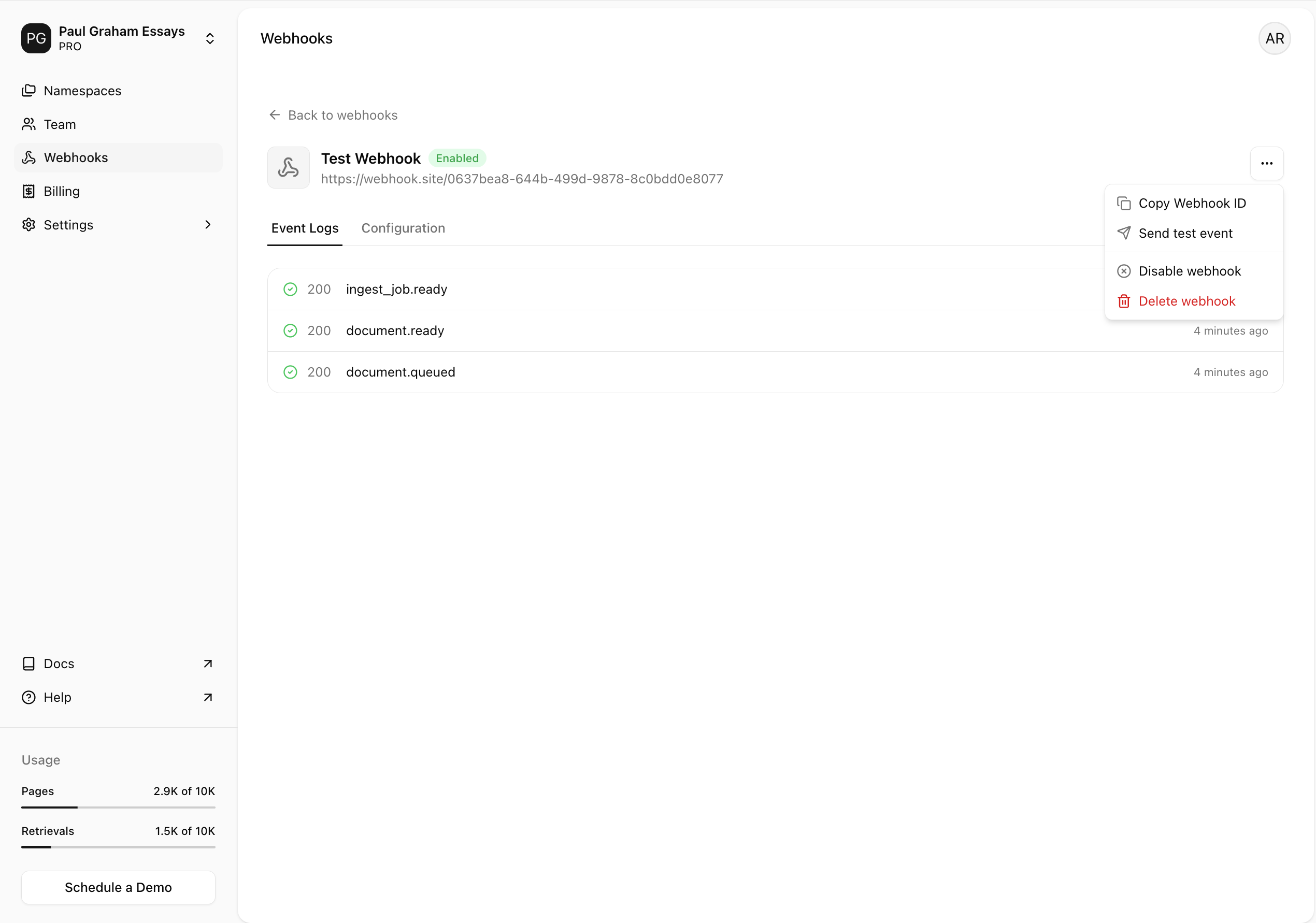 This opens a modal where you can select the event type to send.
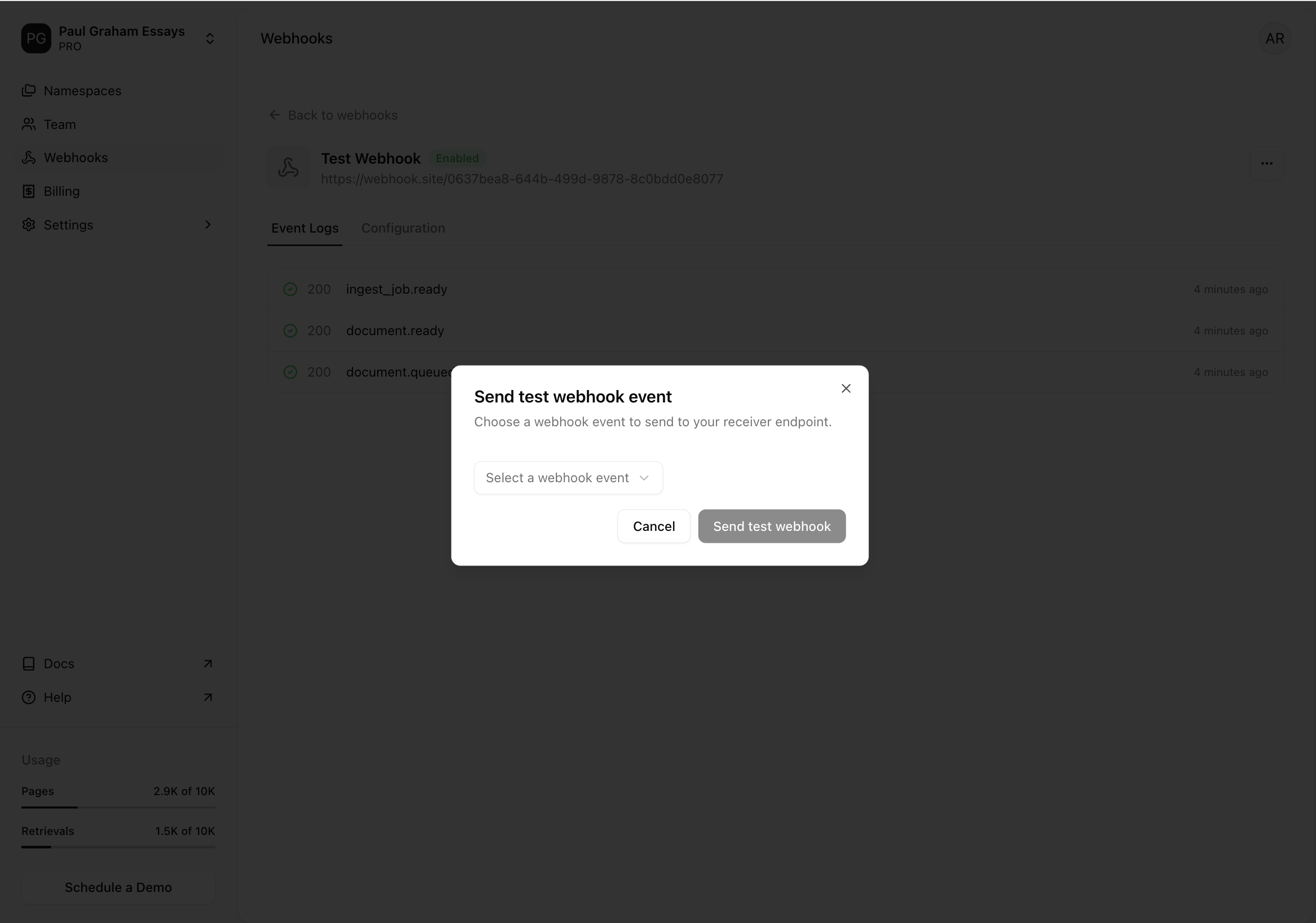 Select the event you want to send, and click **Send test webhook**.
You'll see a success message and receive the webhook event at the endpoint you specified.
## Retry behavior
If your webhook endpoint does not respond with a success status code (2xx) within 20 seconds, Agentset retries the request to ensure delivery. You can see all retry attempts in your webhook event logs.
Webhooks are retried with exponential backoff to avoid overwhelming your endpoint. The delay is capped at 24 hours, with a maximum of 10 retry attempts.
| Retry attempt | Delay |
| ------------- | ----------- |
| 1st | 12s |
| 2nd | 2m 24s |
| 3rd | 30m 8s |
| 4th | 6h 7m 6s |
| 5th | 12h 14m 12s |
| 6th | 24h |
| 7th | 24h |
| 8th | 24h |
| 9th | 24h |
| 10th | 24h |
### Temporary disablement
If a webhook endpoint consistently fails, it will be automatically disabled after a series of failed attempts.
Notifications are sent to organization owners at the following intervals:
* After 5, 10, and 15 consecutive failed attempts.
* On the 20th consecutive failed attempt, the **webhook will be disabled**.
This mechanism ensures that non-responsive endpoints do not continue to receive retry attempts indefinitely, maintaining system efficiency.
You can re-enable a disabled webhook by clicking the **Enable webhook** button in the webhook details page.
Select the event you want to send, and click **Send test webhook**.
You'll see a success message and receive the webhook event at the endpoint you specified.
## Retry behavior
If your webhook endpoint does not respond with a success status code (2xx) within 20 seconds, Agentset retries the request to ensure delivery. You can see all retry attempts in your webhook event logs.
Webhooks are retried with exponential backoff to avoid overwhelming your endpoint. The delay is capped at 24 hours, with a maximum of 10 retry attempts.
| Retry attempt | Delay |
| ------------- | ----------- |
| 1st | 12s |
| 2nd | 2m 24s |
| 3rd | 30m 8s |
| 4th | 6h 7m 6s |
| 5th | 12h 14m 12s |
| 6th | 24h |
| 7th | 24h |
| 8th | 24h |
| 9th | 24h |
| 10th | 24h |
### Temporary disablement
If a webhook endpoint consistently fails, it will be automatically disabled after a series of failed attempts.
Notifications are sent to organization owners at the following intervals:
* After 5, 10, and 15 consecutive failed attempts.
* On the 20th consecutive failed attempt, the **webhook will be disabled**.
This mechanism ensures that non-responsive endpoints do not continue to receive retry attempts indefinitely, maintaining system efficiency.
You can re-enable a disabled webhook by clicking the **Enable webhook** button in the webhook details page.